
One product catalogin Salesforce and QuickBooks
Import your QuickBooks items into Salesforce, push Salesforce products to QuickBooks, and line the two catalogs up item by item. Sync Health tells you what's linked, what's waiting and what failed, and why.
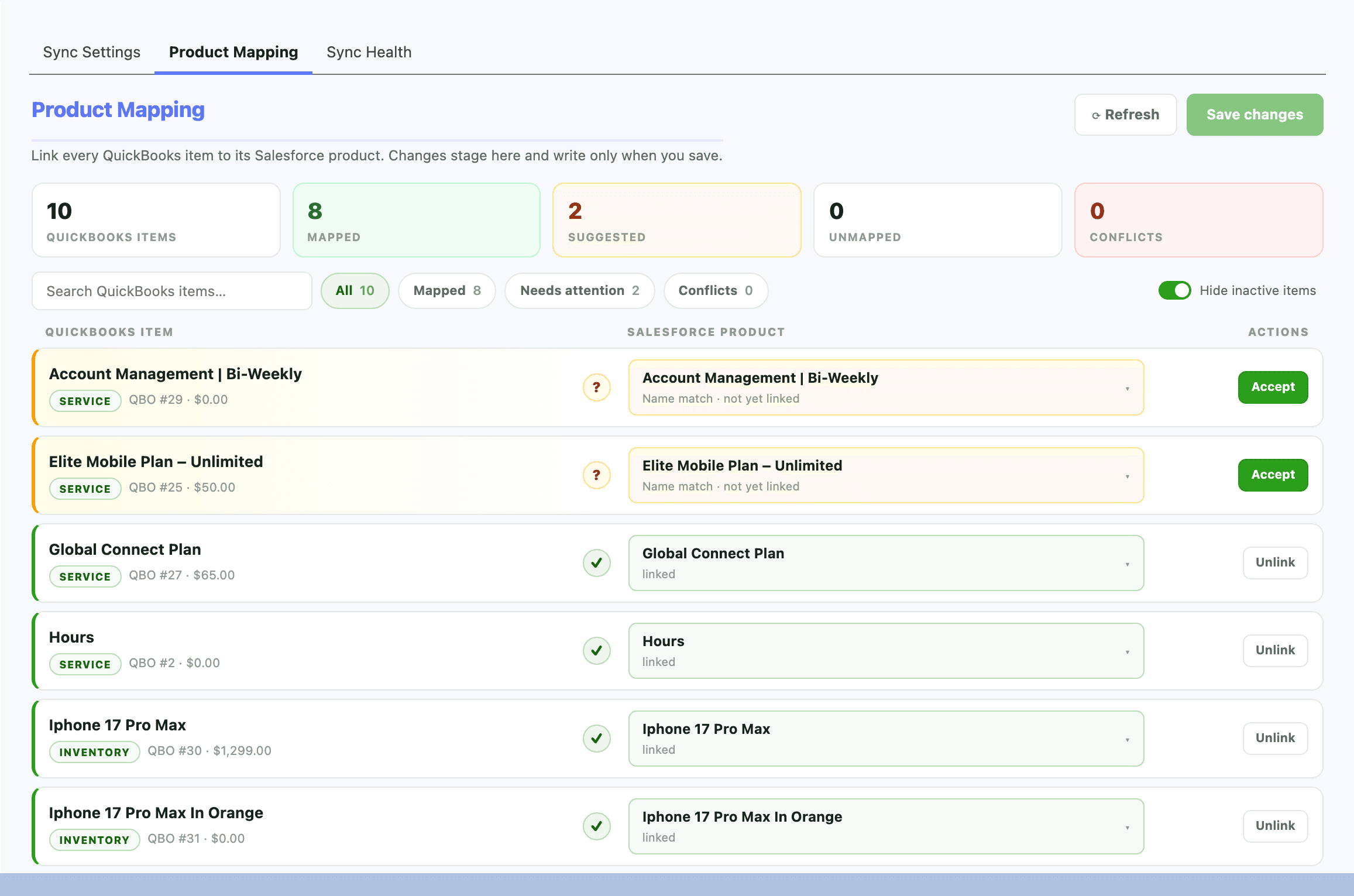
Product Mapping in the Tally Hub, from a demo org.
Both directionson your terms
Choose how existing products match before the first import, then let real-time sync keep the catalogs together.
Three matching strategies
Match by Name, Match by ID, or Match by Name AND ID, so an existing catalog merges without duplicates.
Import from QuickBooks
Sync Products brings QuickBooks items into Salesforce, with their prices in your price books.
Export to QuickBooks
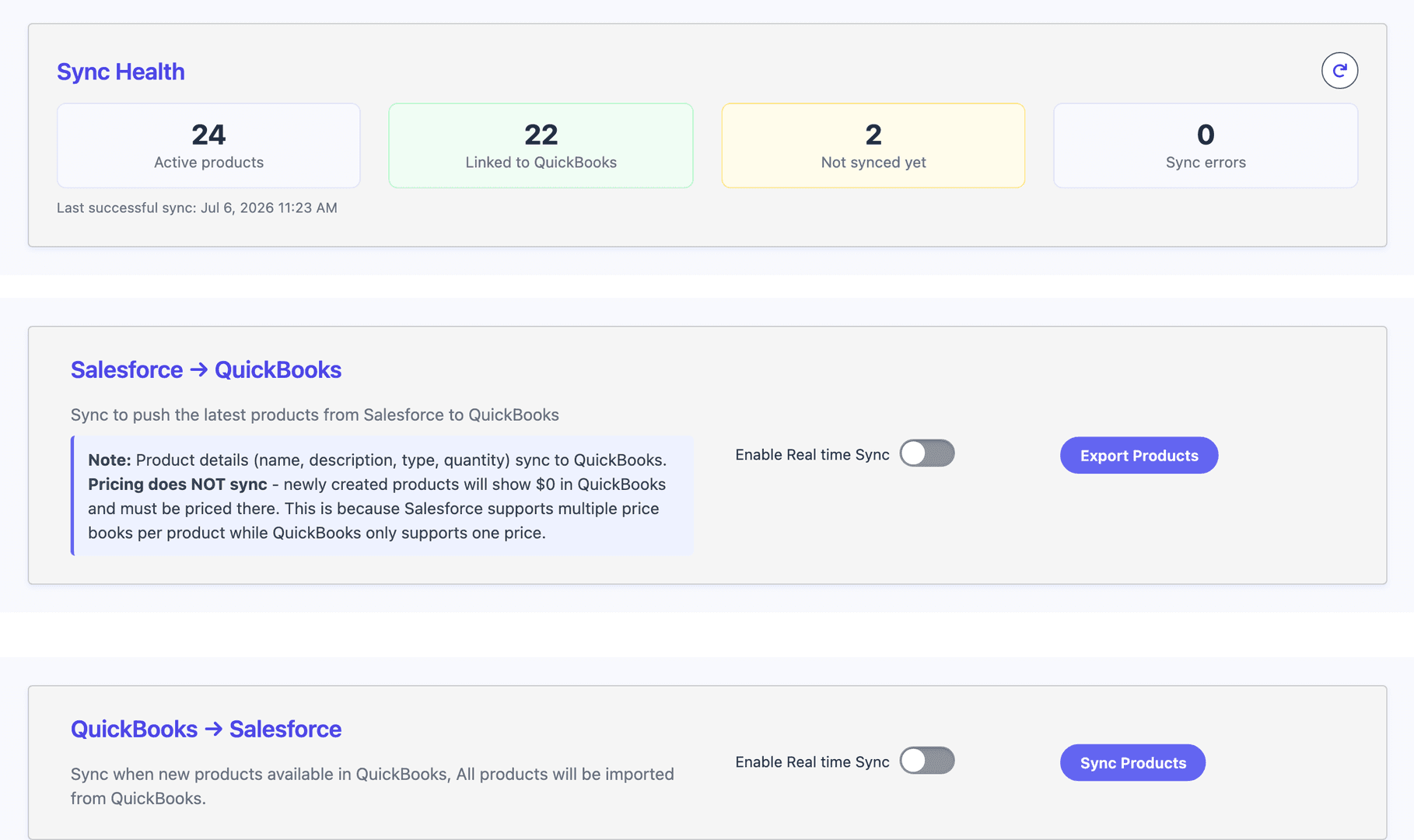
Export Products sends Salesforce products to QuickBooks: name, description, type and quantity.
Real-time, each way
Separate Enable Real time Sync switches for Salesforce to QuickBooks and QuickBooks to Salesforce.
Inactive follows along
An item made inactive in QuickBooks is deactivated in Salesforce, so no one quotes it.
Product Mapping
Every QuickBooks item beside its Salesforce product: accept a suggested match, pick one, create what's missing or unlink. Changes stage until you save.
Sync Healthwhat's linked, waiting or failed
Active products, how many are linked to QuickBooks, how many aren't synced yet and how many hit an error, with the time of the last successful sync. The export and import controls for each direction sit right below.
Set it up oncethen watch Sync Health
Everything lives on the Sync Products page of the Tally Hub.
- 1
Pick a matching strategy
By name for a first import, by QuickBooks ID for ongoing sync, or both for the strictest match.
- 2
Import, export or map
Pull QuickBooks items in, push Salesforce products out, or line them up in Product Mapping.
- 3
Turn on real-time sync
Per direction, so new and changed products follow on their own.
- 4
Check Sync Health
Active products, linked to QuickBooks, not synced yet, sync errors, and the last successful sync.
Pricing
$3,995
per year, Tally Basic
Two-way product sync is in every plan, starting with Tally Basic.
In Tally Basic
- Sync products & services both waysIncluded
- Pre-populate line items from Opportunity productsIncluded
- Sync accounts & QuickBooks customersIncluded
- Create, edit, and resend invoices in SalesforceIncluded
Questionsabout product sync
How does Tally avoid duplicate products?
Can I choose exactly which Salesforce product a QuickBooks item links to?
Does pricing sync?
How do I know if a product failed to sync?
What happens when an item is made inactive in QuickBooks?
More of the package
All features- Invoicing
- Recurring Invoicing
- Payment Processing
- Estimates
- Sales Receipts
- Purchase Orders
- Automation
- Class Tracking
- Custom Fields
- Custom Tax Rates
- Data Migration