 Purchase Orders
Purchase orders in Salesforce — split by vendor automatically
Build purchase orders with a clean two-step builder and push them to QuickBooks Online — or point one Flow at an order and let Tally create a separate PO for every vendor at once.
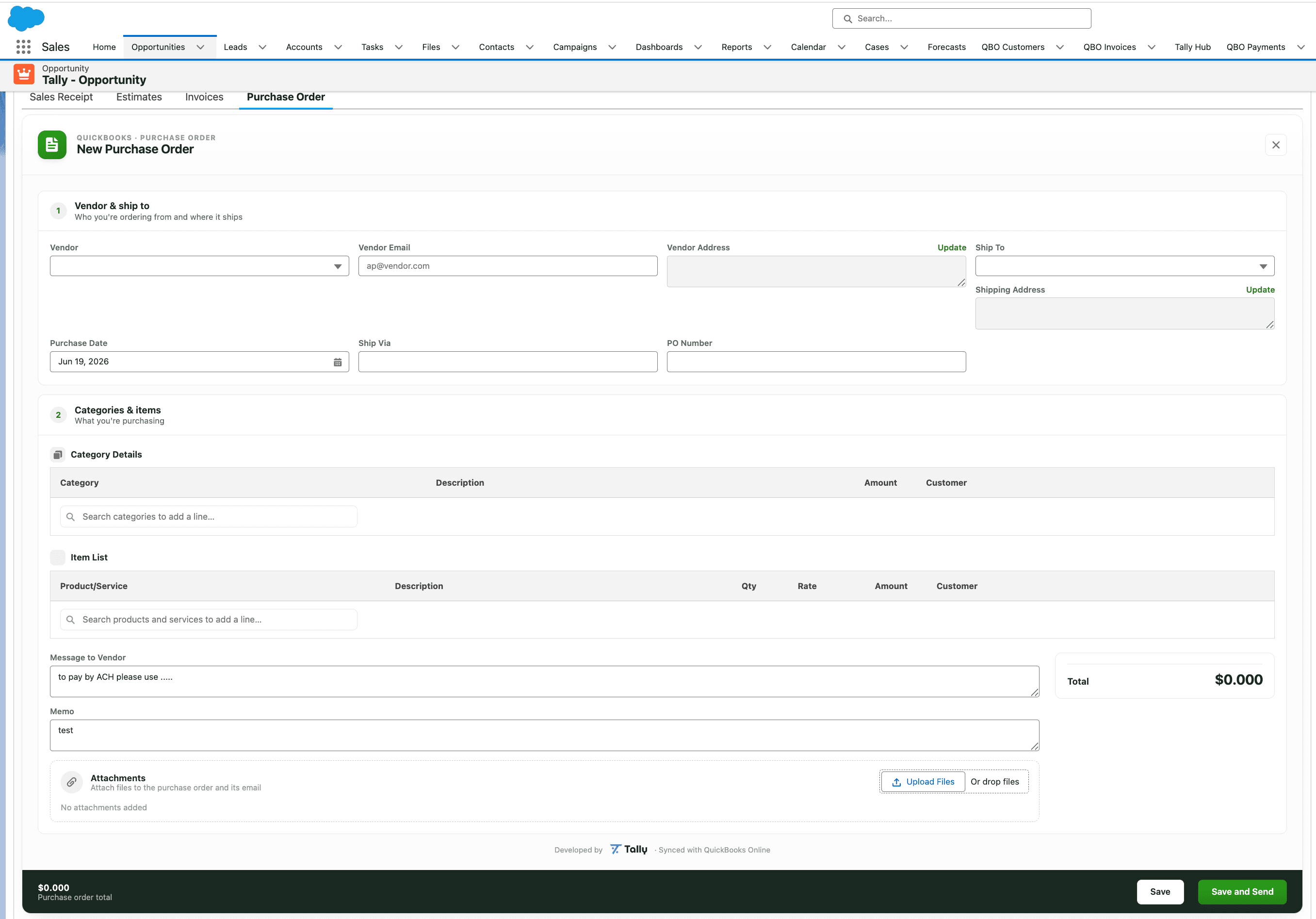
A two-step purchase order builder
Recently redesigned with inline search-to-add tables — capture exactly what your vendors and your books need. The form validates before it sends, and if QuickBooks rejects a PO you see the real reason in plain English — never a generic error.
Vendor & ship-to
- Searchable vendor picker — vendors synced from QuickBooks
- Vendor email and editable ship-to / shipping addresses
- Purchase date, ship-via, PO number, and custom fields
Categories & items
- Categories table — account-based expense splits (account, description, amount, customer, class)
- Items table — product line items (product, qty × rate, customer, class)
- Per-line customer & class allocation, attachments, message-to-vendor + memo
One order in. A purchase order per vendor out.
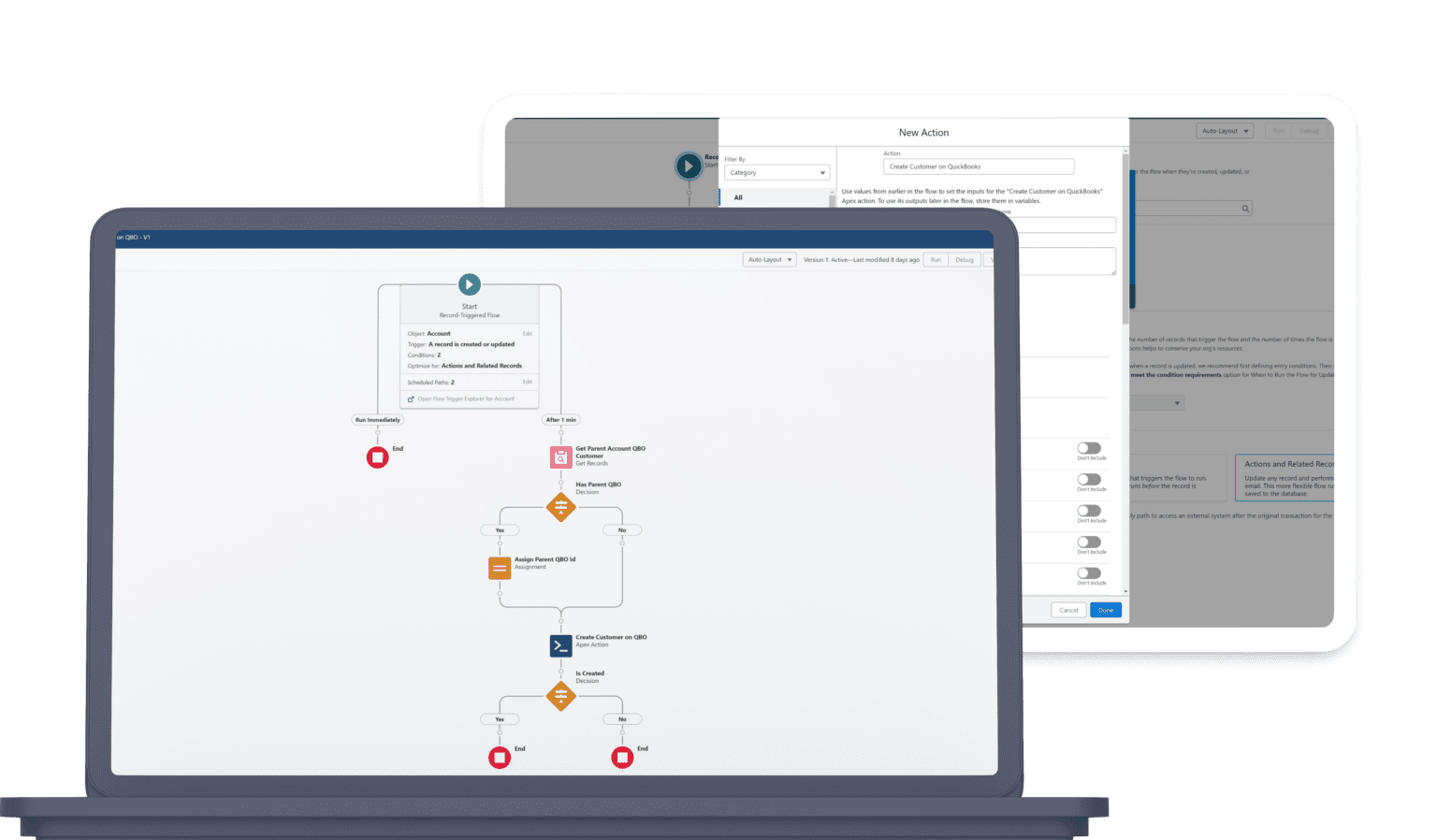
Point the “Create Purchase Orders by Vendor” Flow action at an Opportunity or Order. Tally detects its line items, groups them by each product's Preferred Vendor, and creates a separate purchase order per vendor — then pushes them all to QuickBooks and writes each RefId back.
Create Purchase Orders by Vendor- Split one Opportunity or Order into a PO per vendor — automatically.
- Products with no preferred vendor fall back to a default vendor you set.
- Stamp a PO number and memo on every created purchase order.
- Pushes all POs to QuickBooks and writes back their RefIds.
Purchase Orders FAQ
Can Tally create a purchase order for each vendor automatically?
Yes. The “Create Purchase Orders by Vendor” Flow action groups an Opportunity or Order's line items by each product's Preferred Vendor and creates a separate purchase order per vendor — then pushes them all to QuickBooks at once.
Where do vendors come from?
Vendors are synced from QuickBooks into Salesforce as a read-only mirror, so the builder always picks from your real, up-to-date QuickBooks vendor list.
Can I allocate class and customer per line?
Yes. Both the Categories (account-based expense splits) and Items (product line items) tables support per-line customer and class allocation.
What happens to products without a preferred vendor?
They fall back to a default vendor you set in the Flow. If no default vendor is set, those products are skipped.
Ready to unify QuickBooks and Salesforce?
Unify your QuickBooks experience directly from your Opportunities in Salesforce.