 Invoicing — the flagship
Send QuickBooks invoices without leaving Salesforce
Create, edit, send, and void QuickBooks Online invoices from the Account or Opportunity your reps already live in — built in the same UI, pushed to QuickBooks in one click.
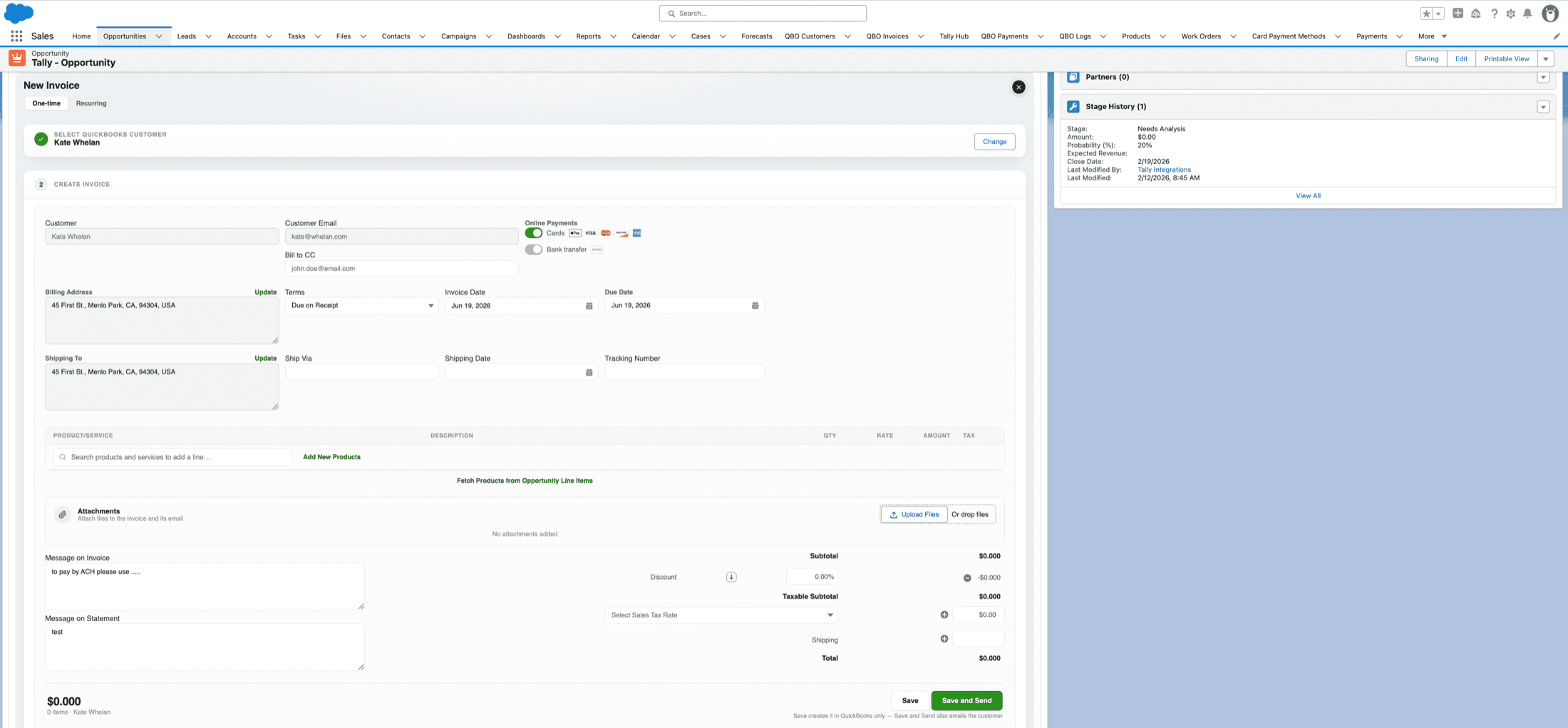
Start with the right QuickBooks customer
Every invoice opens with a clean two-step builder. First, choose the QuickBooks customer the invoice bills against — Tally shows the customers already linked to the Salesforce account, so reps never bill the wrong entity.
- Link an existing QuickBooks customer to the account
- Create a brand-new QuickBooks customer in one step
- Refresh to pull the latest from QuickBooks
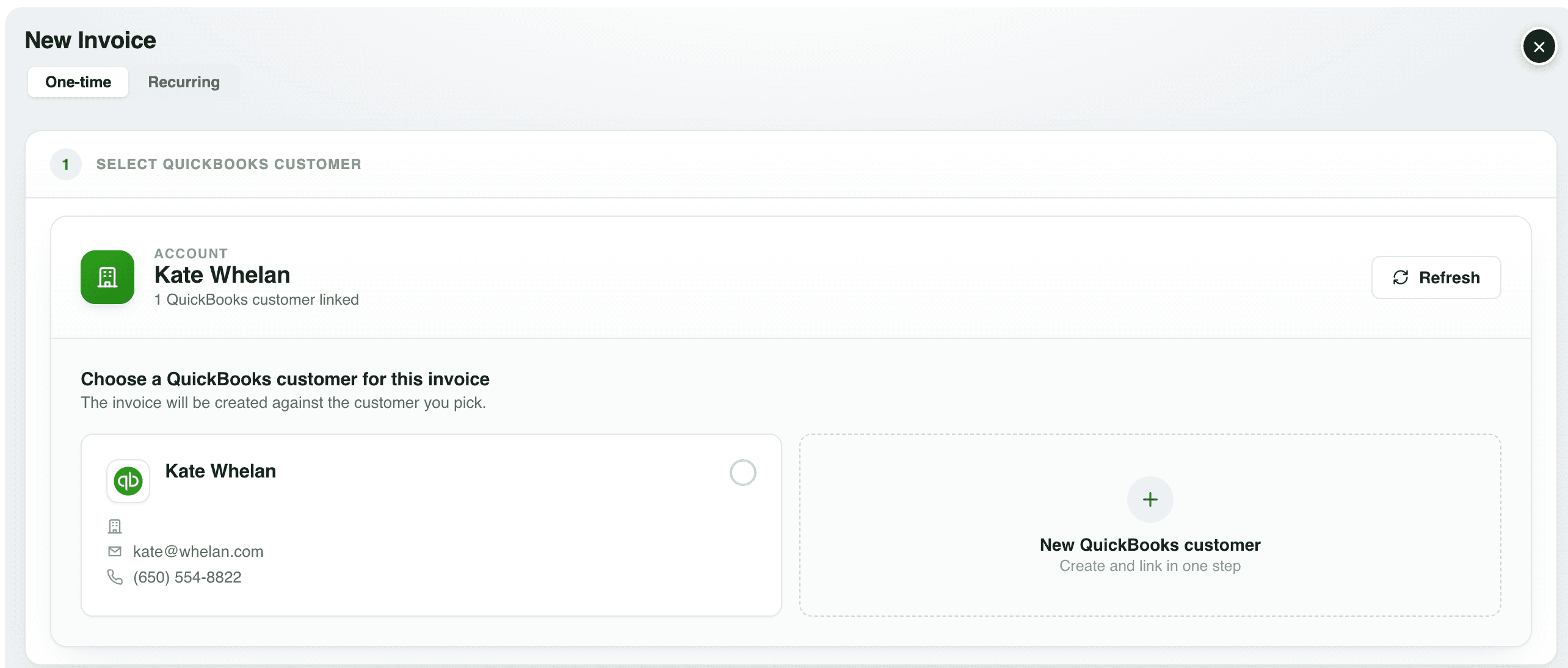
Map customers your way — or let automation do it
Map a QuickBooks customer to the correct Salesforce account directly from the component — no admin screens. Create a new customer, link one that was never mapped, or unlink one you no longer want attached.
- Create a new QuickBooks customer or link an existing, unmapped one — without duplicates
- Automatically create new QuickBooks customers with automation
- Map a current QuickBooks customer to the right Salesforce account from the component
- Unlink a customer you no longer want mapped to the account
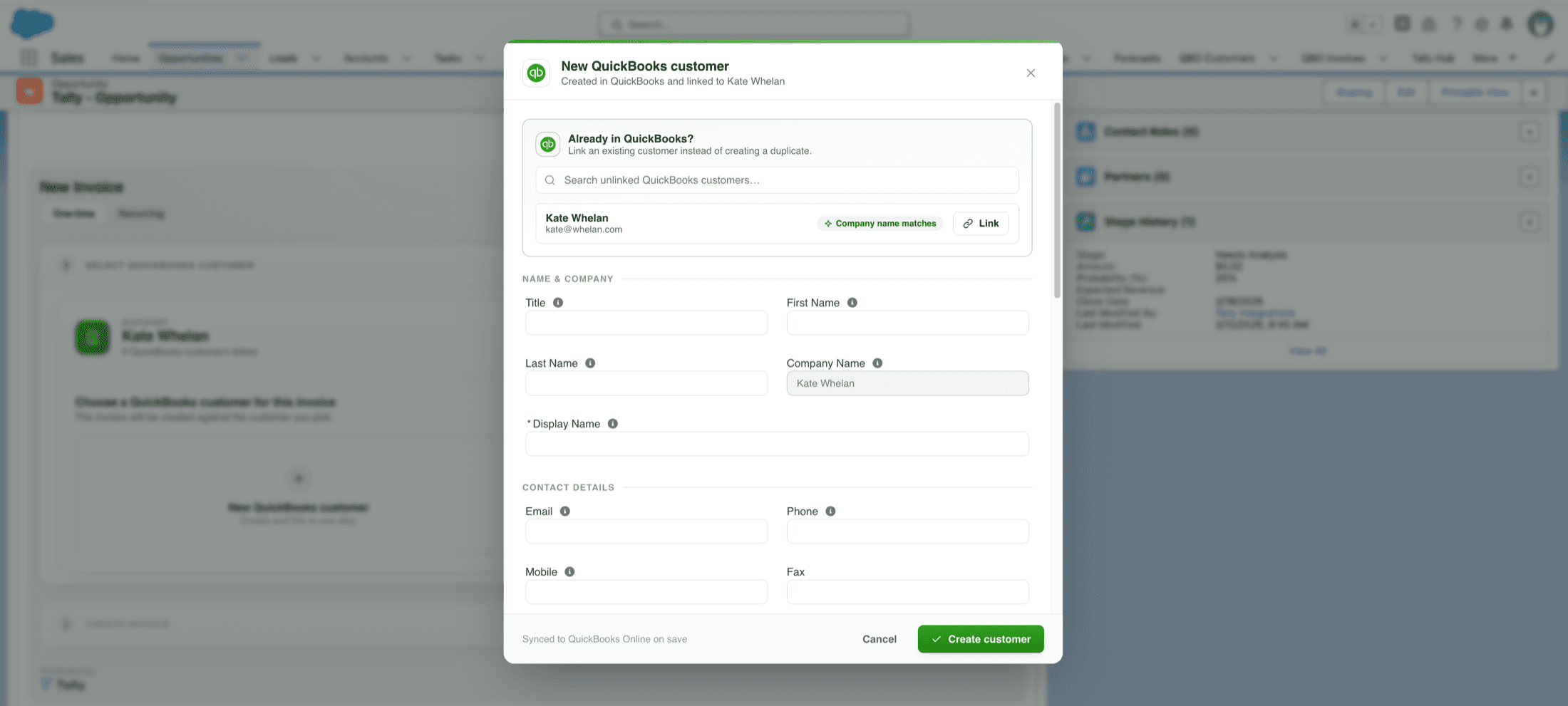
Capture everything an invoice needs
Tally's invoice builder captures the full picture and pushes it straight to QuickBooks — including online payment toggles that flow into QuickBooks' hosted “Pay Now” experience.
One button. Line items from anywhere.
A macro is a configurable button right inside the invoice builder — powered by a Salesforce Flow you design. Press it and Tally assembles the line items on the spot, even pulling from multiple Opportunities or custom objects into a single invoice. Configure up to two of your own.
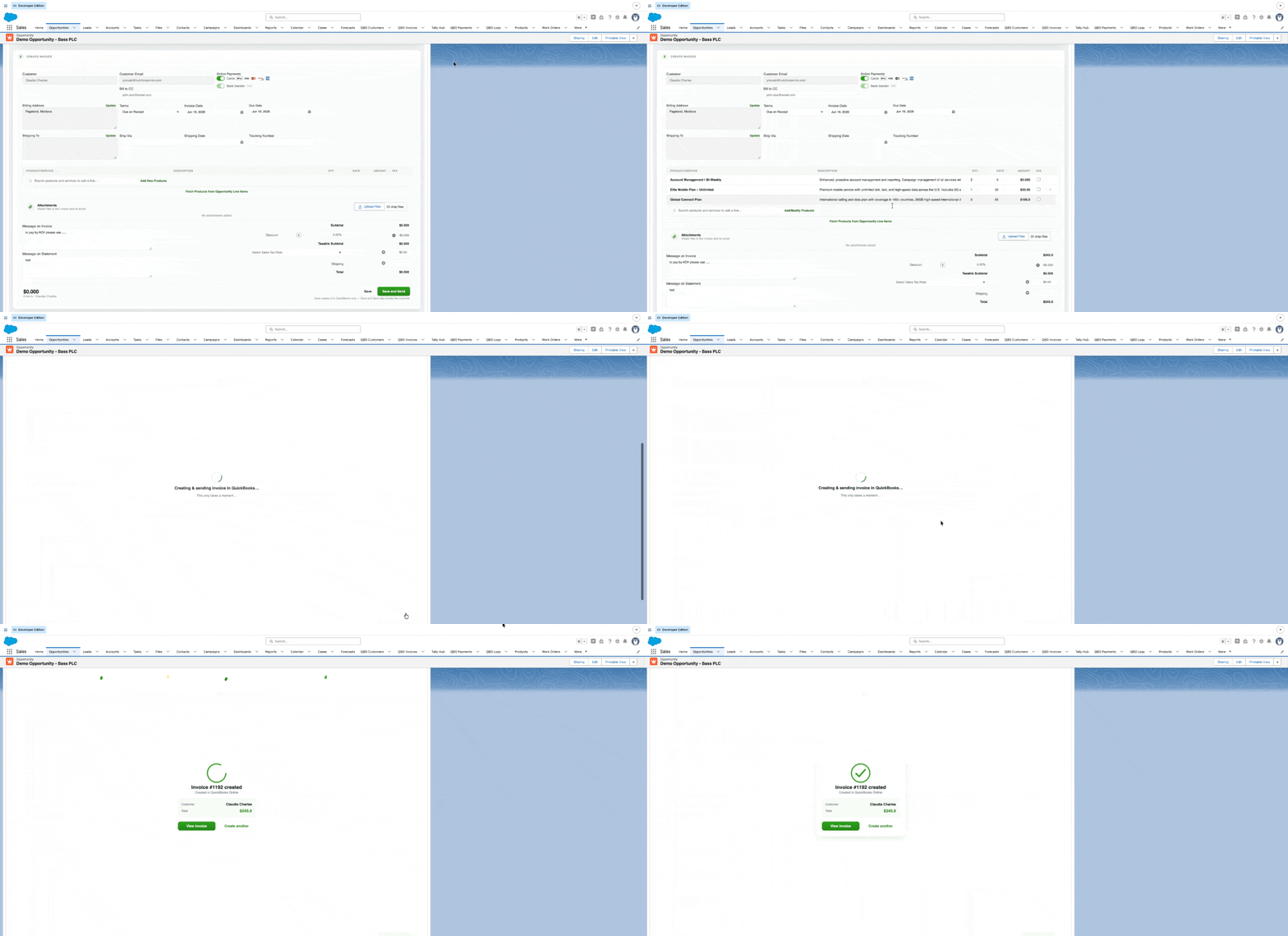
A macro in action — one click builds the line items.
Consolidate multiple Opportunities
Pull line items from several Opportunities into one consolidated invoice — bill a whole account in a single click.
Bill from any custom object
Subscriptions, work orders, usage records, projects — pull line items from the objects unique to your business.
Fetch from the Opportunity
The built-in macro pulls the Opportunity's (or Order's) products straight onto the invoice.
Drop in standard bundles
Add a preset set of products, fees, or services with one press — perfect for repeatable billing.
Apply your own pricing logic
Bundles, tiers, and discounts handled by the Flow behind the button — exactly how your business prices.
Up to two custom macros
Configure two labeled buttons on the invoice table, each running its own Flow you design.
If Salesforce can trigger it, Tally can do it
Macros run on a click; automation runs on a trigger — two sides of the same superpower. Tally ships native invocable actions for Flows and Process Builder, so you can wire them to any event (a closed deal, a new order, a schedule) and your QuickBooks documents build, send, and pay themselves.
Create Invoice on QBO – Easy Setup Create Estimate on QBO Create Sales Receipt on QBO – Easy Setup Create Purchase Orders by Vendor Create Customer on QuickBooks Update Customer on QuickBooks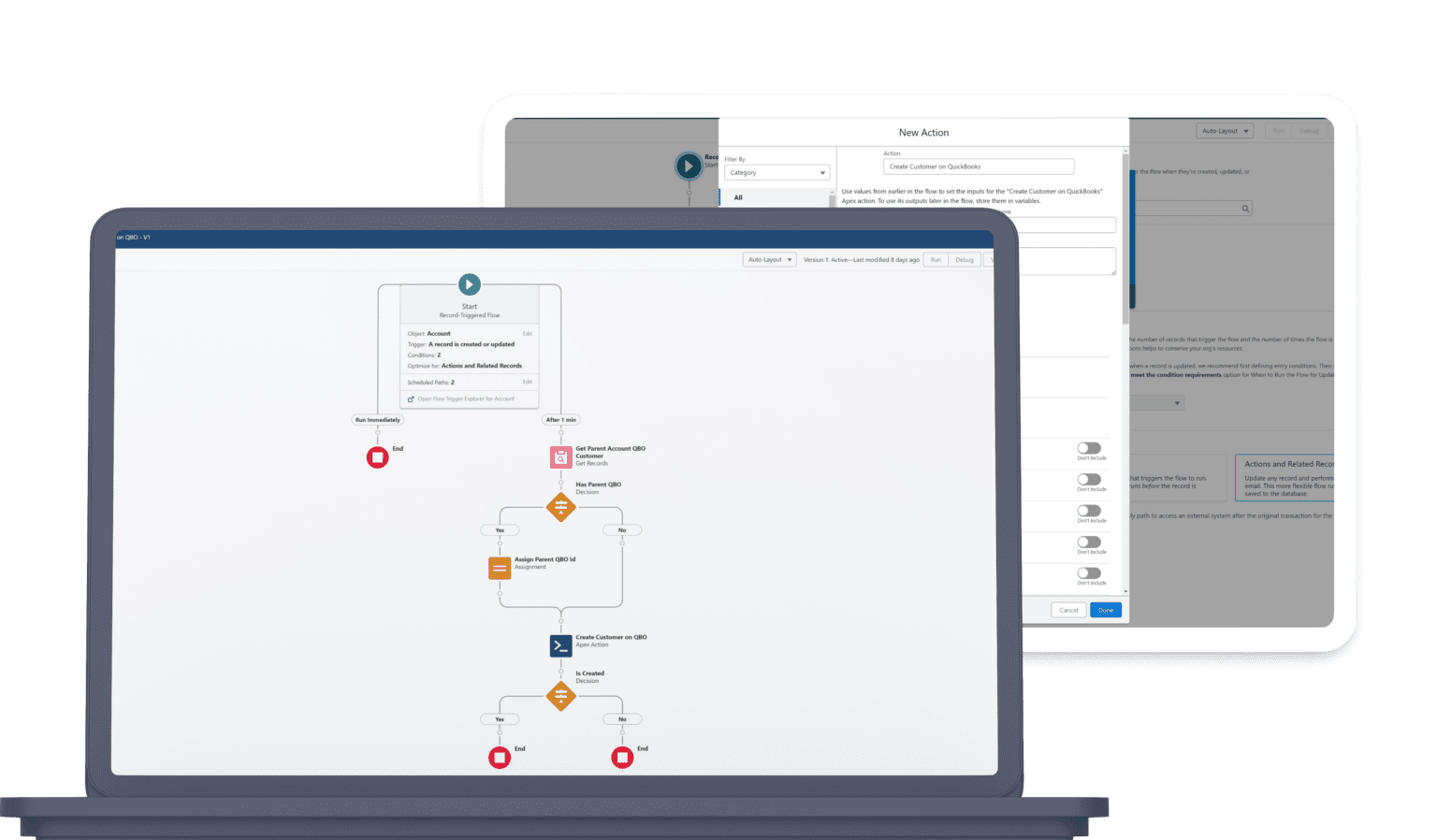
Invoice the second a deal closes
Fire Create Invoice when an Opportunity flips to Closed Won — no human in the loop.
Pull line items automatically
Build the invoice from the Opportunity or Order's products, with addresses and terms.
Mark paid on creation
For prepaid deals, generate the invoice already marked paid in QuickBooks.
Recurring billing with auto-pay
Templates charge a stored card or bank account automatically on a daily/weekly/monthly schedule.
Keep customers in sync
Auto-create or update QuickBooks customers from Salesforce with native Flow actions.
Split POs by vendor
Turn one order into a purchase order per vendor — all created and pushed at once.
Auto-generate estimates & receipts
The Easy Setup actions build estimates and sales receipts inside any Flow.
Batch sync at scale
Queue and push generated documents to QuickBooks reliably, under API limits.
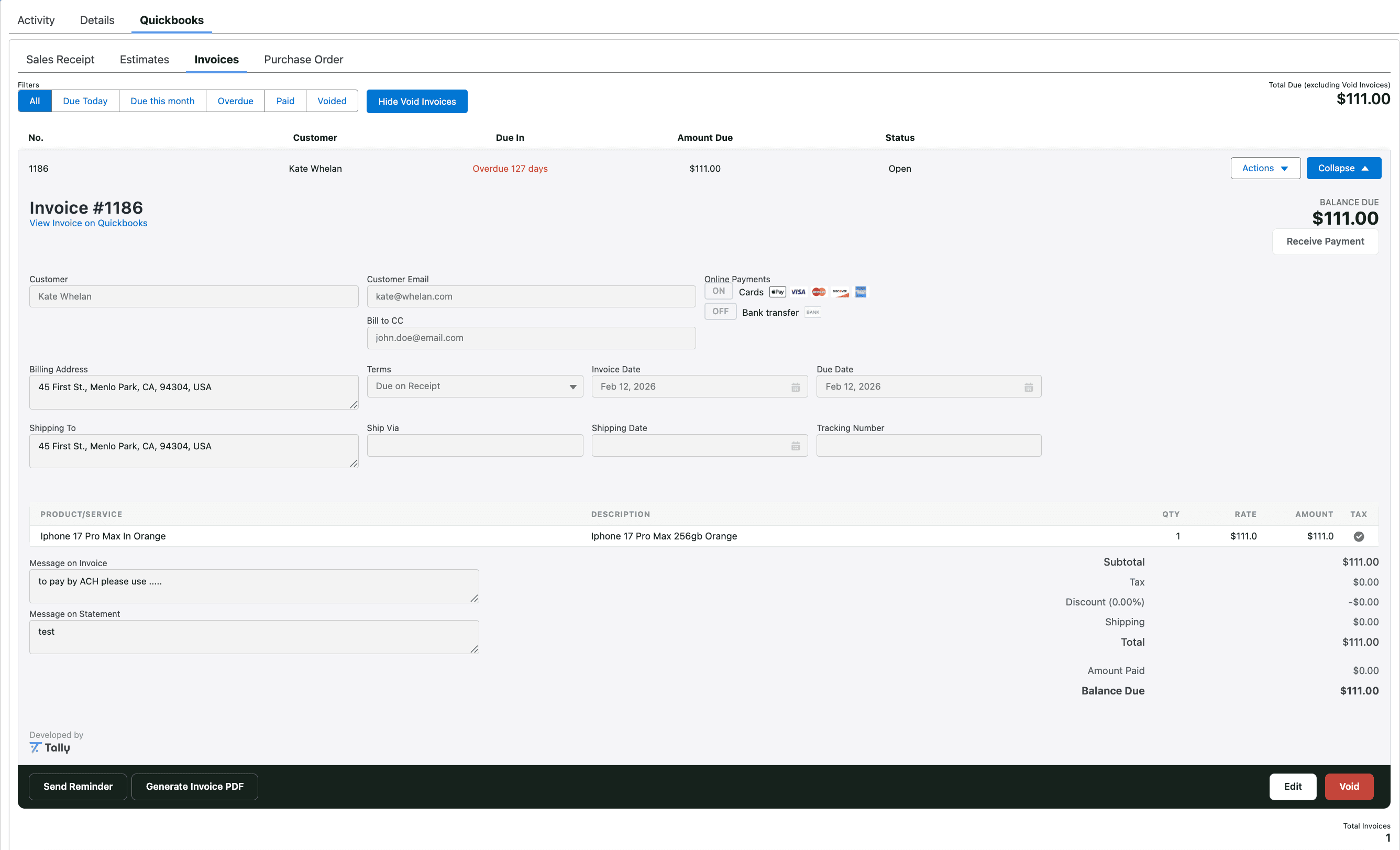
Edit, resend, remind, PDF, and void — all from Salesforce
The invoice viewer does more than display — every action writes straight back to QuickBooks Online, so Salesforce and your books never drift apart.
- Edit and push changes back to QuickBooks (locked once Paid or Void)
- Send Reminder emails the customer through QuickBooks
- Generate Invoice PDF pulls the official QuickBooks PDF onto the record
- Void flips the invoice to Void in QuickBooks and Salesforce
- Receive Payment and see live balance due
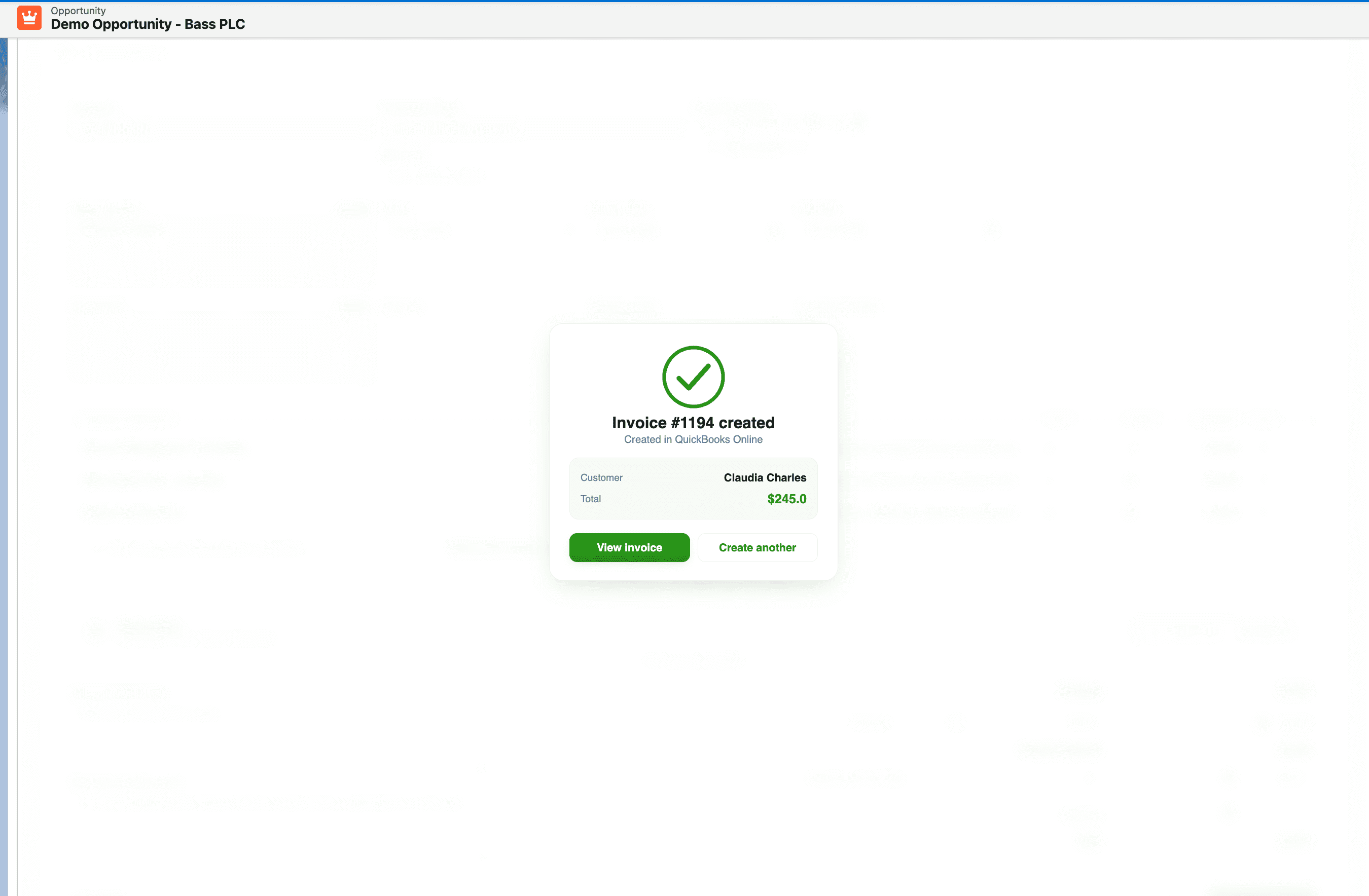
Save to QuickBooks, or save & send — instantly
Hit Save to push to QuickBooks, or Save & Send to push and email the customer in one move. The real QuickBooks invoice number and total appear in seconds — confirmed with a clean success panel.
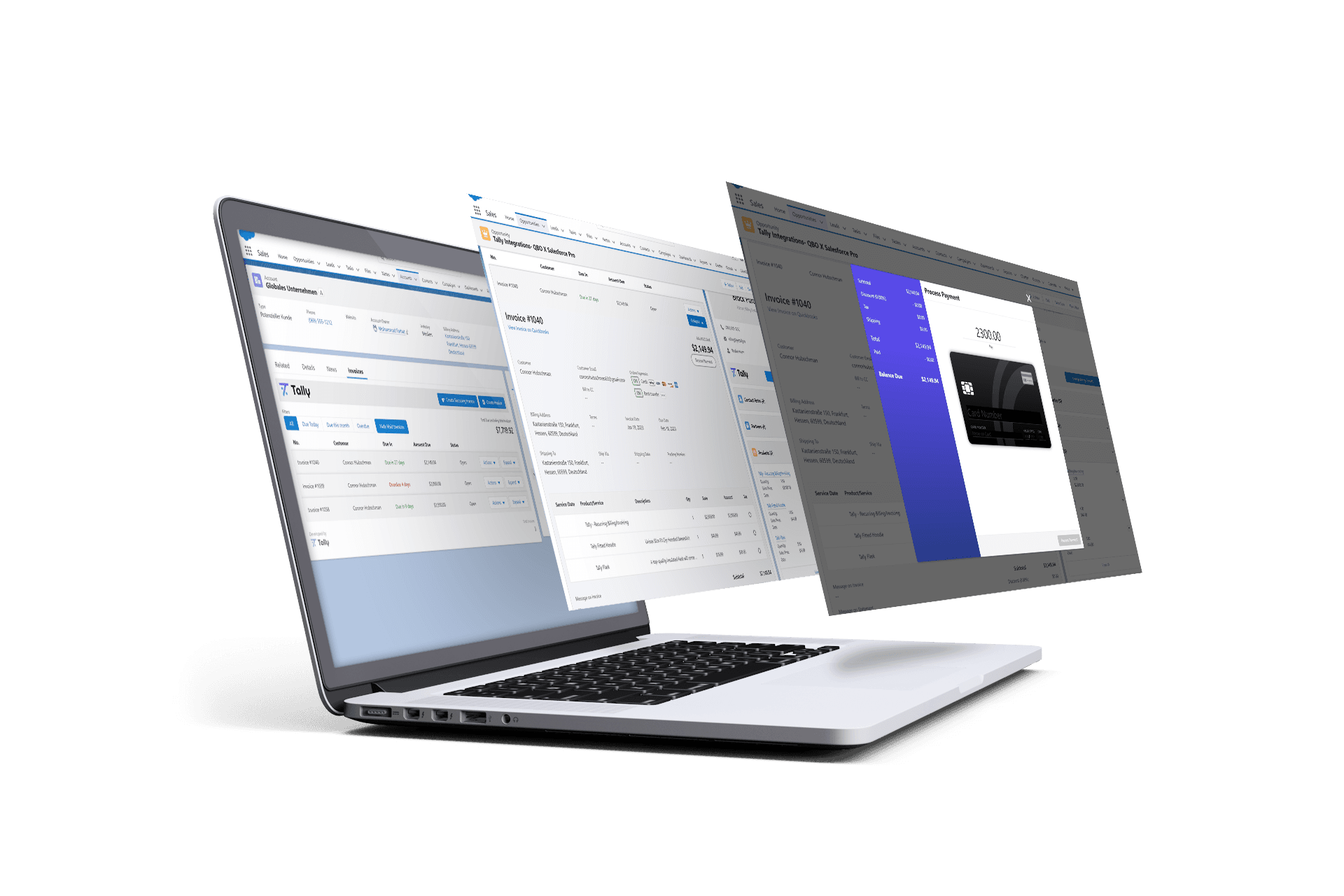
Process CC & ACH payments without leaving Salesforce
Tally accepts credit card and ACH payments through QuickBooks Online. Customers can pay with Mastercard, Visa, American Express, and Discover — all from inside Salesforce. And when a customer pays outside QuickBooks — cash, check, or wire — reps record it against the invoice in the same modal.
Integrated with your QuickBooks merchant
No separate merchant hookup. If you can process payments in QuickBooks, Tally's payment processing works in Salesforce.
Charge any amount
Take deposits, partial payments, or charge in full — collect however your business collects. Outstanding balances show as Partially Paid.
Auto-relate payments to an invoice
Every payment is stored on the invoice record for reporting. Pull the full history with the “Show Payments” button.
Store payment methods (PCI compliant)
Save CC & ACH methods for future charges — tokenized and stored in QuickBooks, called by reference ID. No private data is ever exposed.
Compatible with recurring billing
Use saved payment methods with Tally's recurring billing to charge automatically on a schedule.
Add or revoke privileges
Permission Sets control who can create and send invoices or charge a saved payment method on file.
Save cards while staying compliant
Tally tokenizes card and bank info into opaque containers, then uses the token to make API calls and process payments — never reading or exposing any private data. It's the preferred way to send card information and maintain full PCI compliance.
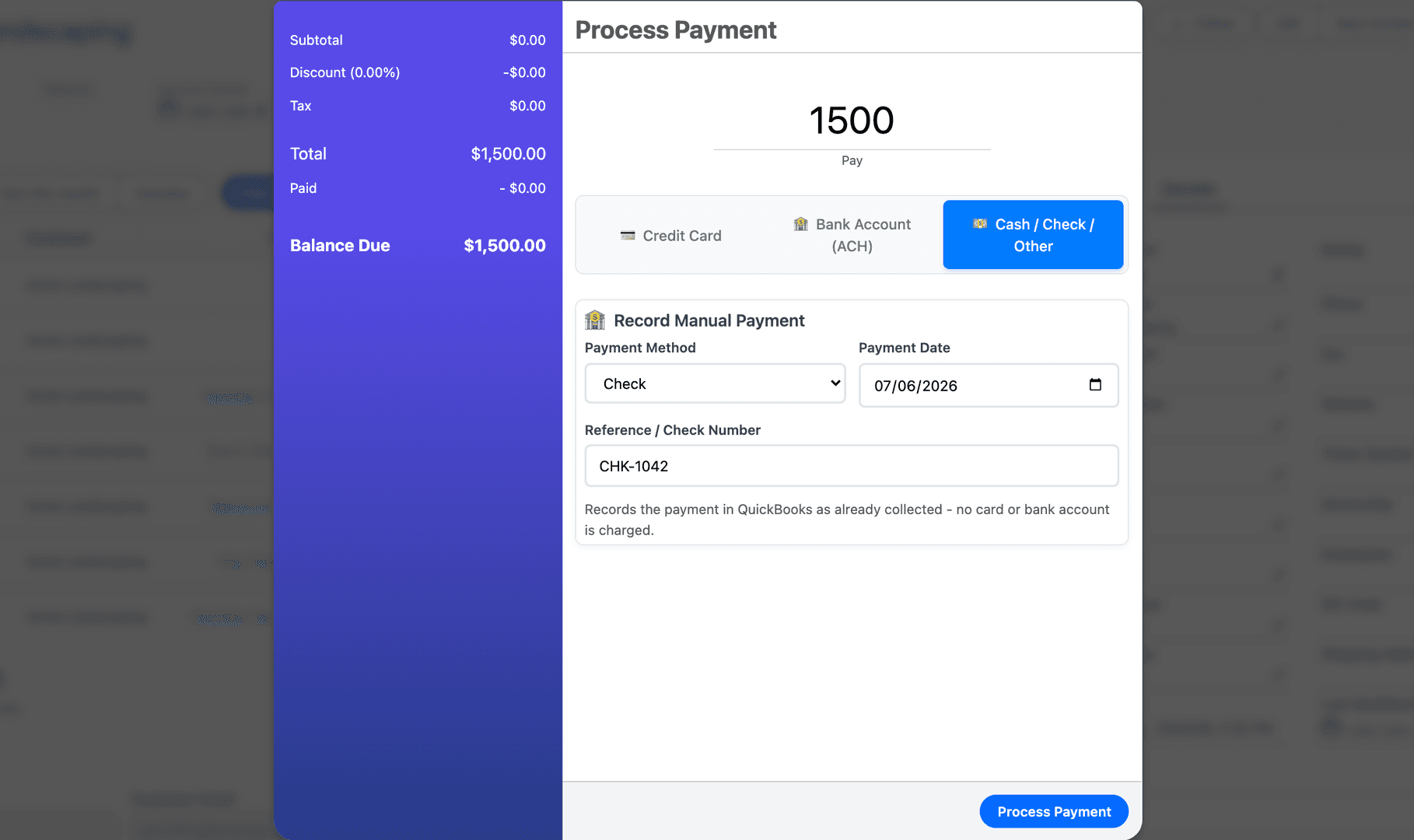
Paid by cash, check, or wire? Record it in one click
Not every payment runs through a card. The Receive Payment modal has a Cash / Check / Other option that records the payment in QuickBooks Online — no card or bank account is charged — and marks the invoice Paid or Partially Paid in both systems.
- Payment methods pulled from your QuickBooks company — custom ones included.
- Stamp the payment date and the check or wire reference number.
- Automate it from Flows with the bulk-safe “Record Payment on Existing QBO Invoice” action.
Subscriptions and recurring billing, on autopilot
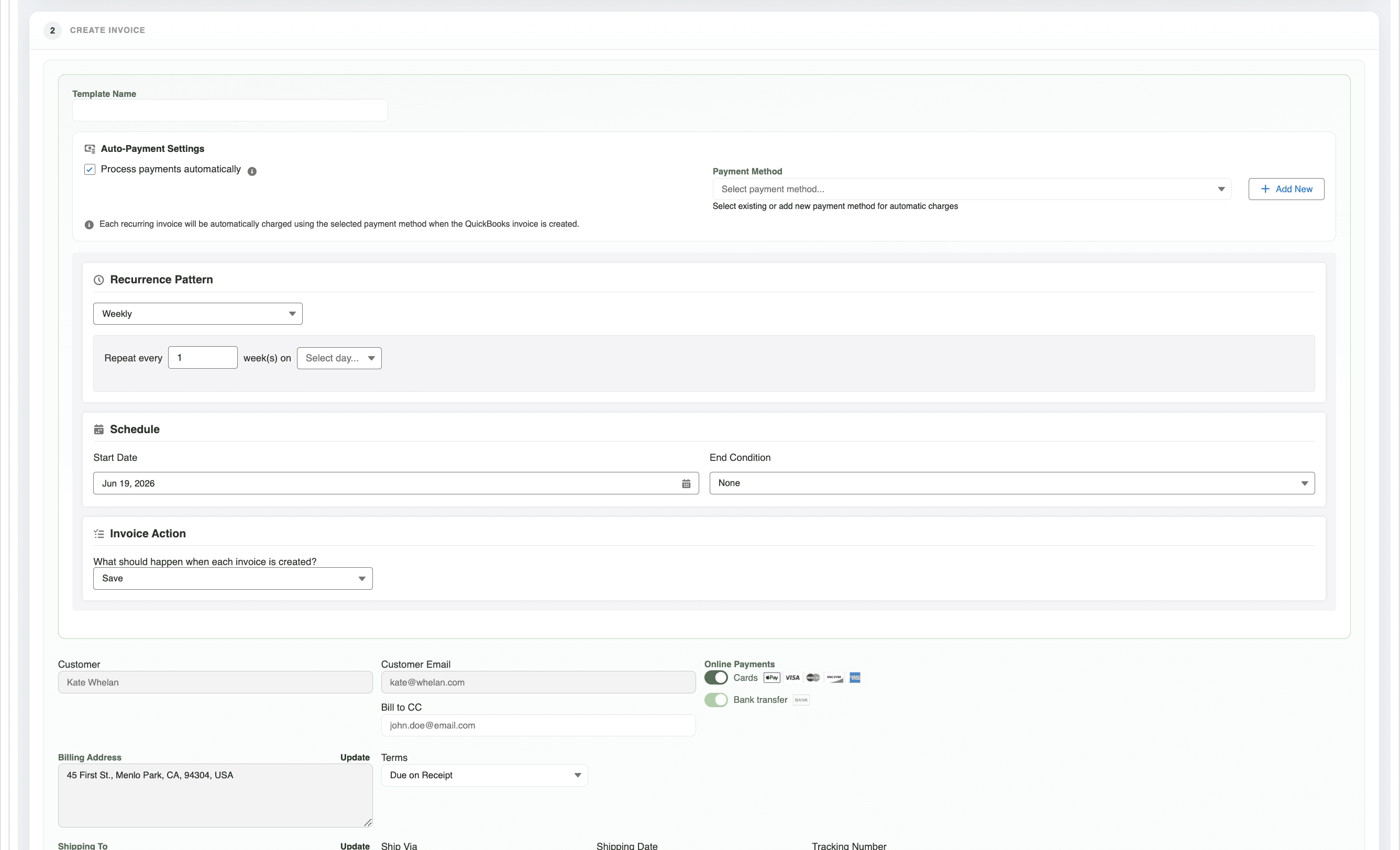
Save any invoice as a recurring template with a schedule. A job runs daily, clones the next invoice, advances the schedule, and pushes it to QuickBooks — with auto-pay built in.
- Intervals: daily, weekly, monthly, quarterly, bi-annually, annually.
- Fine control: specific weekday, day-of-month, or first/second/last weekday of the month.
- End criteria: never, by end date, or after N occurrences.
- Auto-pay: charge a stored card or bank account automatically as each invoice generates.
Invoicing FAQ
Can I create QuickBooks invoices from Salesforce?
Yes. Tally adds a Create Invoice launcher to your Account and Opportunity pages that opens a two-step builder — pick the QuickBooks customer, build the invoice — and pushes it to QuickBooks Online in one click.
Can I edit an invoice after it's created?
Fully. Editing amends the invoice and pushes the changes back to QuickBooks — CC email, terms, dates, addresses, card/ACH toggles, discount, shipping, line items, and messages. Editing is locked once an invoice is Paid or Void.
Can invoicing be automated?
Three ways: with no-code Salesforce Flows using the 'Create Invoice on QBO – Easy Setup' action (it can auto-pull line items from an Opportunity or Order), with a genuine recurring-invoice engine, and with batch sync. You can even hit a button to generate the line items for you.
Can I generate an invoice PDF or send reminders?
Yes. Generate Invoice PDF pulls the official QuickBooks-rendered PDF and stores it on the Salesforce record, and Send Reminder emails the customer through QuickBooks to the primary billing contact and CC.
Ready to unify QuickBooks and Salesforce?
Unify your QuickBooks experience directly from your Opportunities in Salesforce.