 Custom Fields · QuickBooks Advanced
Your QuickBooks custom fields, mapped to every document
Import your QuickBooks custom field definitions into Salesforce and map them to the exact transaction types they belong to. One click to sync — no data lost in translation.
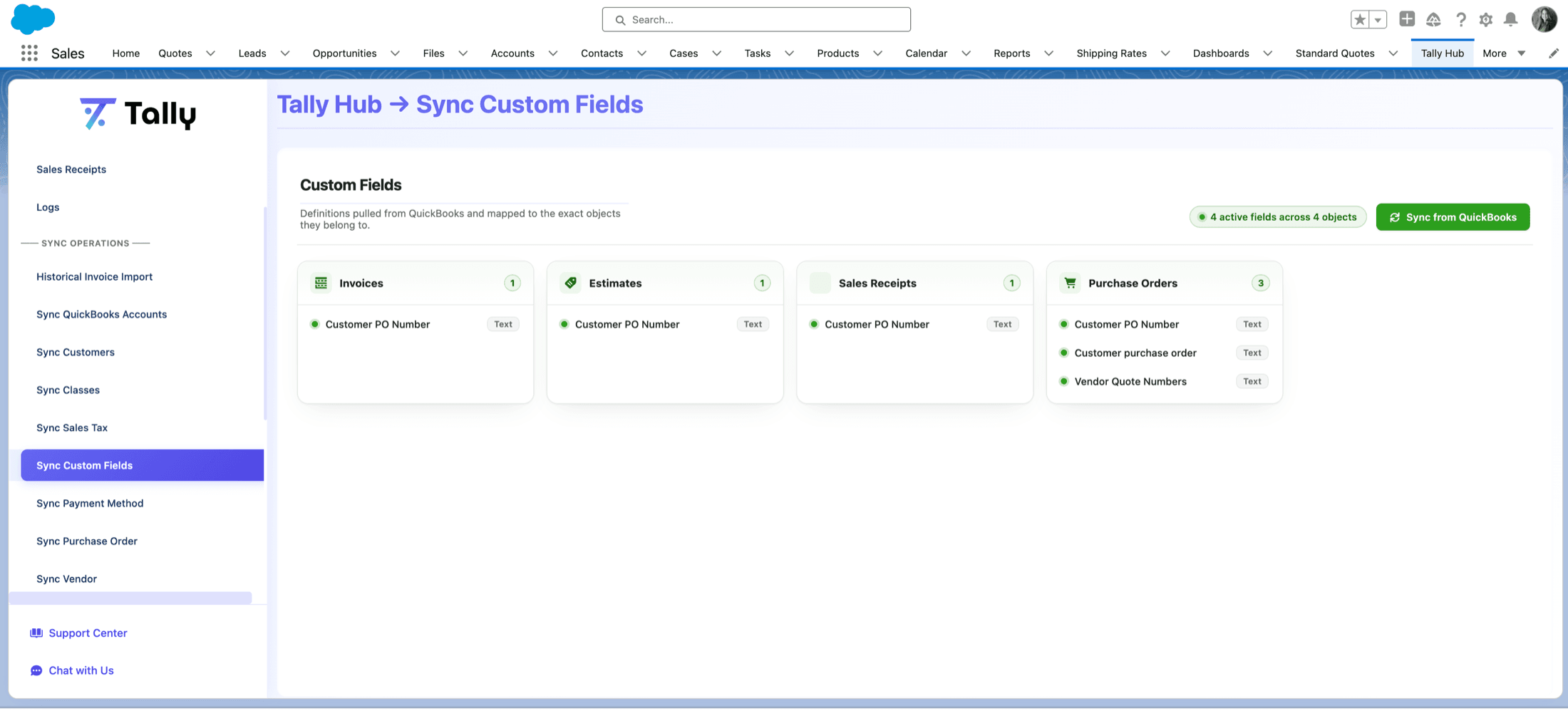
Mapped to the exact objects they belong to
Definitions are pulled from QuickBooks and mapped to each transaction type — so the right fields show up on the right documents.
A manager built for clarity
Press Sync from QuickBooksand Tally lays out a card per object, with a summary pill like “4 active fields across 4 objects.” Powered by Intuit's modern App Foundations GraphQL API, with automatic fallback to the legacy Preferences method.
- Card-per-object layout with active / inactive state.
- Print-on-form indicator for each field.
- One-click Sync from QuickBooks.
- Off by default — enable per org (full path needs QuickBooks Advanced).
Field types
Every field carries a type badge in the manager.
Custom Fields FAQ
What objects can QuickBooks custom fields map to?
Tally maps your QuickBooks custom field definitions to the exact transaction types they belong to — Invoices, Estimates, Sales Receipts, Purchase Orders, Bills, Expenses, Customers, Vendors, and more.
What field types are supported?
Text, Number, Date, Yes/No, and Dropdown — each shown with a type badge, active/inactive state, and a print-on-form indicator in the manager.
How do custom fields get into Salesforce?
Press “Sync from QuickBooks.” Tally pulls your custom field definitions via Intuit's modern App Foundations GraphQL API (with automatic fallback to the legacy Preferences method) and maps each field to the right object.
Do I need QuickBooks Advanced?
Custom fields are off by default and enabled per org. The full GraphQL path requires QuickBooks Advanced.
Ready to unify QuickBooks and Salesforce?
Unify your QuickBooks experience directly from your Opportunities in Salesforce.