 Data Migration
We've got the heavy lifting covered
Supercharge Salesforce — Tally transforms your QuickBooks customers into powerful Salesforce accounts and contacts, mapped and ready to invoice.
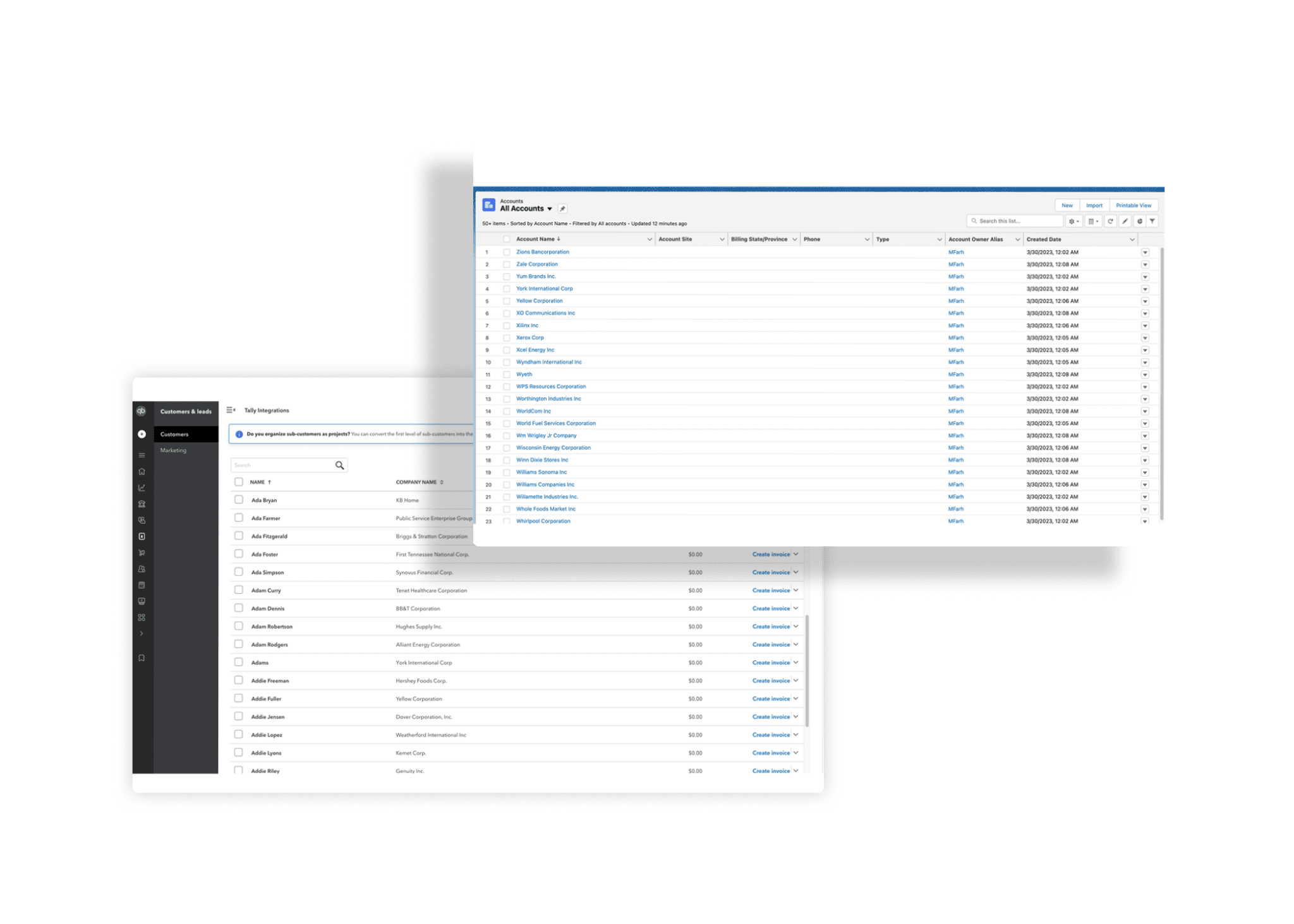
How the migration works
Split one record into two
QuickBooks customers usually hold account and contact info in a single record. Tally divides that into two — an Account and a Contact — to import cleanly into Salesforce.
Account imports
Tally imports QuickBooks customer account info: company name, phone, email, address details, and custom fields.
Contact imports
Tally imports contact info — first & last names, emails, phones, addresses, and custom fields — and maps each contact to its newly imported account.
Customer mapping
Voilà! Your new Salesforce accounts are mapped back to their QuickBooks customers, so invoicing runs accurately from the corresponding account.
Data Migration FAQ
How does Tally import QuickBooks customers into Salesforce?
A QuickBooks customer usually holds both account and contact information in one record. Tally splits it into a Salesforce Account and a Contact, imports both (including addresses and custom fields), and links the contact to its account.
Will my new accounts be mapped for invoicing?
Yes. After import, Tally maps each new Salesforce account back to its QuickBooks customer, so you can invoice accurately straight from the Salesforce account.
What data comes across?
Company name, phone, email, billing & shipping addresses, contact names, and custom fields — for both the account and the contact.
Ready to unify QuickBooks and Salesforce?
Unify your QuickBooks experience directly from your Opportunities in Salesforce.