 Two-Way Sync
Keep your product catalog identical in Salesforce and QuickBooks
Two-way product sync with matching strategies you control — and a Sync Health dashboard that tells you exactly what's linked, what's pending, and what needs attention.
Overview
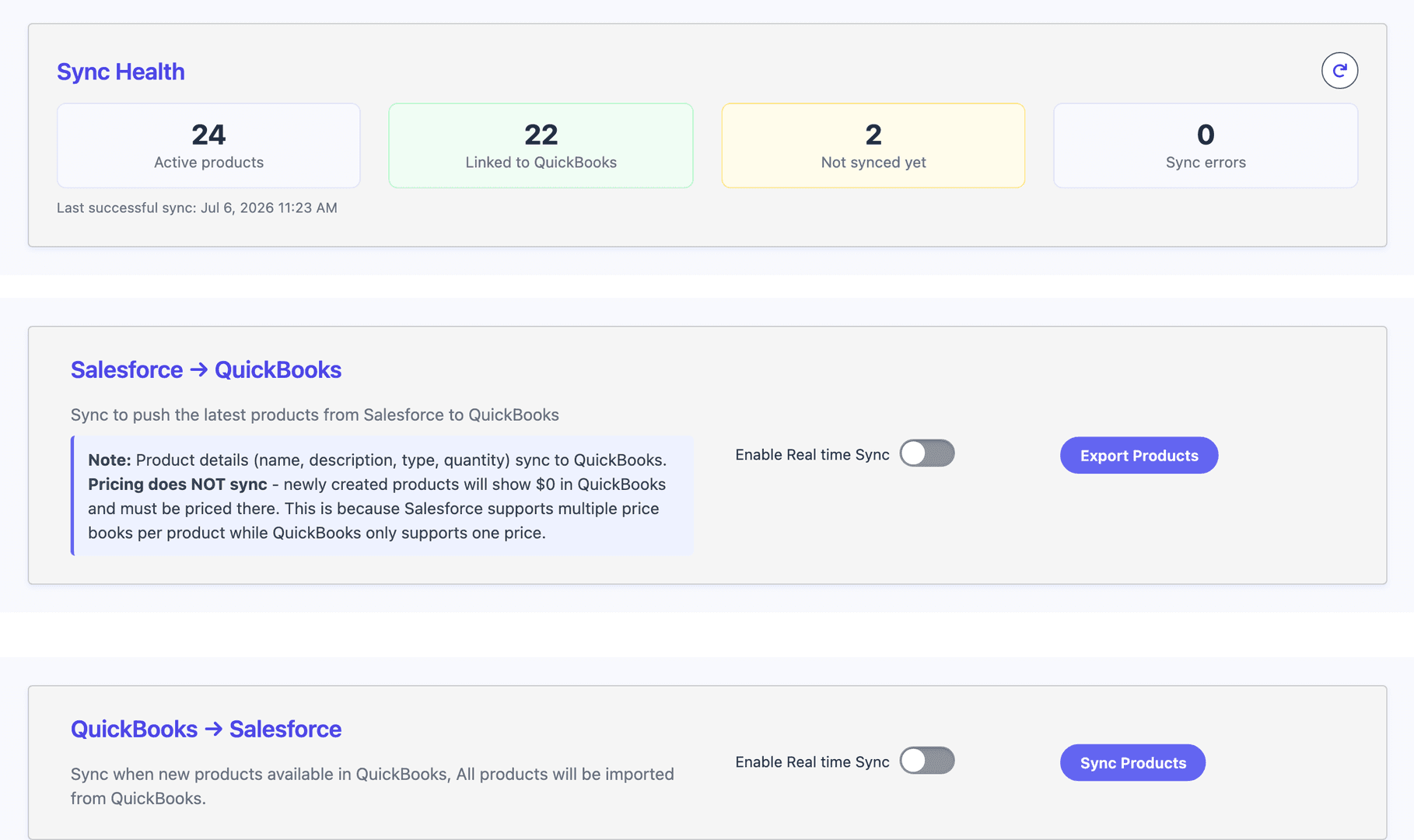
Products are where Salesforce and QuickBooks drift apart first — someone adds an item in one system, renames it in the other, and suddenly invoices don't line up. Tally syncs your catalog both directions: import your QuickBooks items (with prices flowing into your Salesforce price books), push Salesforce products to QuickBooks, and let real-time sync keep them matched from then on. The Sync Health dashboard in the Tally Hub shows what's linked, what isn't, and — when something fails — a plain-English reason on the product itself, like “this item was made inactive in QuickBooks,” so fixing it takes seconds instead of a support ticket.
- Two-way sync: import QuickBooks items or push Salesforce products, manually or in real time.
- Three matching strategies — by name, by QuickBooks ID, or both — so existing catalogs merge without duplicates.
- QuickBooks prices flow into your standard and custom Salesforce price books.
- Sync Health dashboard: linked, pending, and failed counts at a glance, with last-sync time.
- Failed products carry a plain-English reason and fix — no digging through logs.
- Items deactivated in QuickBooks deactivate in Salesforce automatically.
- Built for real catalogs: thousands of items, fractional quantities, preferred vendors.
How it works
Pick a matching strategy
Choose how existing products should match — by name, QuickBooks ID, or both — right in the Tally Hub.
Import or export
Pull your QuickBooks items into Salesforce (prices included) or push Salesforce products to QuickBooks.
Watch Sync Health
Real-time sync keeps both catalogs matched, and the dashboard flags anything that needs attention.
Product Sync FAQ
How does Tally avoid duplicate products?
You choose the matching strategy: match by name (best for first-time imports), by QuickBooks ID (best for ongoing sync), or require both for maximum control. Matched products update in place; unmatched ones are created.
How do I know if a product failed to sync?
The Sync Health dashboard in the Tally Hub shows a failed count, and each failed product carries the reason in plain English — for example, that a referenced account was made inactive in QuickBooks — plus what to do about it.
What happens when an item is deactivated in QuickBooks?
Tally deactivates the matching Salesforce product automatically, so reps can't quote or invoice items you no longer sell.
Does pricing sync?
QuickBooks item prices flow into your Salesforce price books on import and stay updated. Pricing doesn't push from Salesforce to QuickBooks, because Salesforce supports multiple price books per product while QuickBooks holds one price.
Explore more features


Ready to unify QuickBooks and Salesforce?
Unify your QuickBooks experience directly from your Opportunities in Salesforce.